See the camera's settings
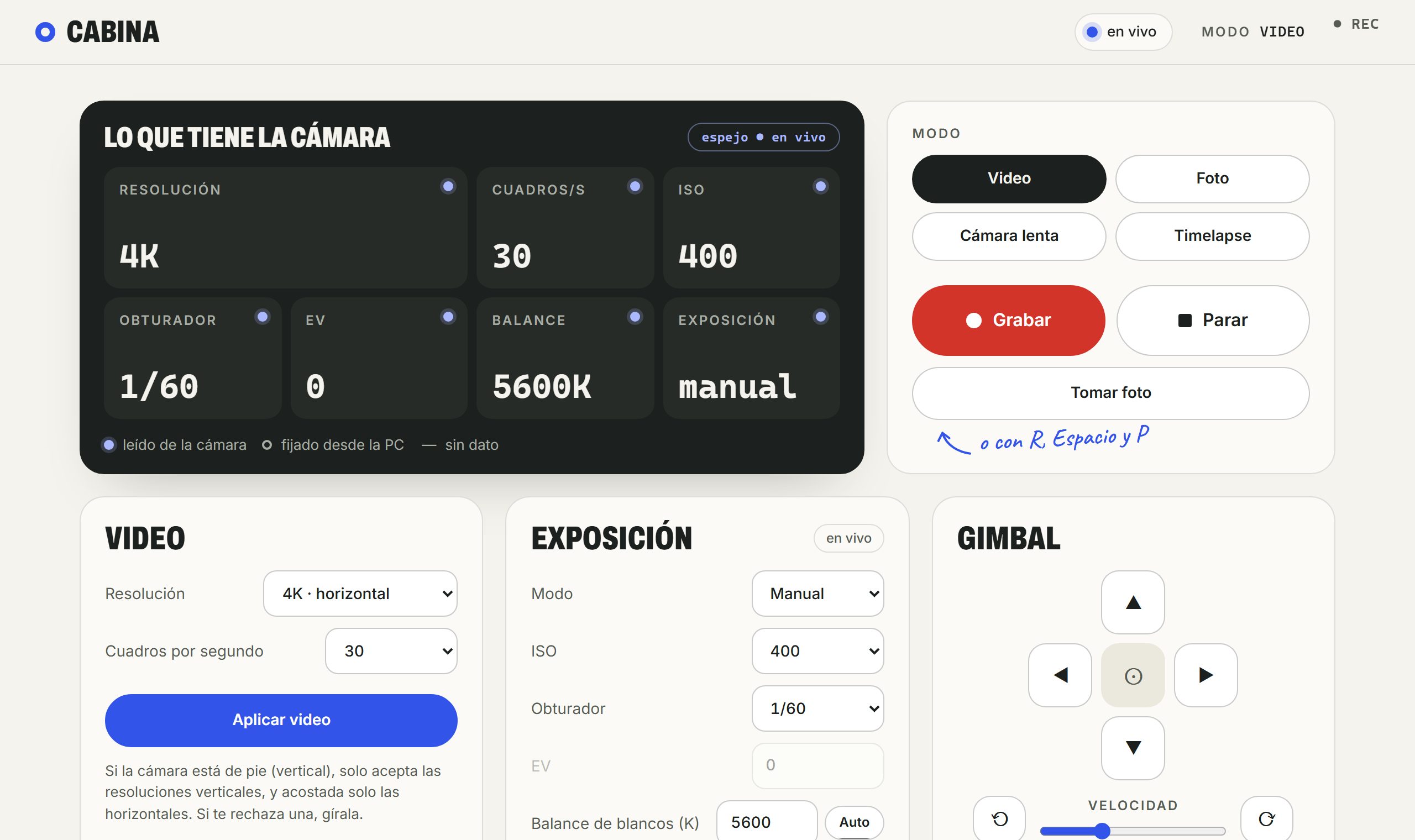
Resolution, frame rate, ISO, shutter, EV and white balance, read from the camera over Bluetooth. Change something on the camera and the PC shows it too.
Free · Open source · Windows
Change resolution, exposure and the gimbal from your browser, and record without touching the camera. You see what the camera is actually set to, read back from the camera itself.
For Windows 10 and 11. An independent project, not made by DJI.
Features
Resolution, frame rate, ISO, shutter, EV and white balance, read from the camera over Bluetooth. Change something on the camera and the PC shows it too.
4K and 1080 horizontal, 3K and 1080 vertical, at 24, 25, 30, 48, 50 or 60 fps. The camera only accepts what its own menu allows.
Manual with ISO and shutter, or auto with EV compensation. White balance in Kelvin or on auto.
Pan, tilt and roll with the mouse or the arrow keys. Let go and it stops, at the speed you pick.
Big buttons and keyboard shortcuts: R starts recording, Space stops and P takes a photo. It also switches between video, photo, slow motion and timelapse.
Save a look by name and bring it back in one click. Build the shot list for your shoot, each shot with its settings, and tick them off as you record.
Who it's for
If you record lessons, a podcast, reviews or streams with the Pocket 4 fixed on your desk, every setting change means reaching for its tiny screen or picking up your phone. With Cabina you plug the camera into your PC over USB-C and drive it from the keyboard in front of you.
Before a take you see its configuration in large type, and a saved preset brings the same look back the next day.
Before you download
Install
You only do this once. You need a Windows 10 or 11 PC with Bluetooth, a USB-C cable that carries data (not just power) and a charged camera.
Get it from python.org (version 3.12 or newer). On the installer's first screen, tick "Add python.exe to PATH", then click Install Now.
On the project's GitHub page, click the green Code button, then Download ZIP. Unzip the folder anywhere, for example in Documents.
Open the folder, click the address bar at the top, type cmd and press Enter. A black window opens in that folder. Paste this and press Enter:
pip install -r requirements.txtIf it says "pip" isn't recognized, close the window and reinstall Python with the box from step 1 ticked.
Windows sees the camera but has no way to send it commands over that connection. Zadig installs a generic driver (WinUSB) on one part of the camera only; the others are left alone.
To undo it: in Device Manager, uninstall that interface and tick "Attempt to remove the driver for this device".
With your PC's Bluetooth on (no need to pair the camera), paste this in the same black window:
python -m cabinaIt opens in your browser on its own. If not, go to http://127.0.0.1:8765. To close it, close the black window.
In the camera's menu, set Auto Power Off to Never. Otherwise the camera turns itself off after a few minutes, even with the console open.
FAQ
No. It's free and open source under the MIT license, so you can use it, read the code and change it.
No. It's an independent project, not affiliated with or endorsed by DJI.
It doesn't modify the firmware or install anything on the camera; it sends the same settings you change in its menu. It's still an unofficial tool, so use it at your own risk, and keep in mind DJI could take it into account in a warranty claim.
Not to use Cabina. If your camera is new and DJI asks you to activate it, do that first the way DJI says.
So far it has only been checked with the Osmo Pocket 4, so with other models there's no way to know yet.
Not checked yet. The pieces it uses exist for Mac and Linux too, but today's guide and testing are for Windows.
Only to install it. After that the console runs on your PC and talks to the camera over USB and Bluetooth, offline.